"Learn how to generate PDF files in Laravel using DomPDF with this step-by-step tutorial. You'll discover how to install and configure DomPDF, create PDF documents from Blade views, download or stream PDFs, and build professional invoices, reports, and other printable documents."
How to Generate PDF in Laravel (Using DomPDF)
Generating PDFs is one of those features almost every real-world Laravel application eventually needs — invoices, receipts, reports, certificates, you name it. The good news is Laravel makes this incredibly simple with the help of the DomPDF package.
In this tutorial, we'll walk through how to generate PDF files in Laravel 12 using the barryvdh/laravel-dompdf
What We'll Cover
- Installing DomPDF in Laravel 12
- Generating a simple PDF from a Blade view
- Passing dynamic data into your PDF
- Downloading vs. streaming a PDF
- Setting paper size and orientation
Prerequisites
- A working Laravel application
- PHP 8.1 or higher
- Composer installed
If you don't have a Laravel project yet, create one with:
composer create-project laravel/laravel laravel-pdf-demo

cd laravel-pdf-demo
Step 1: Install the DomPDF Package
barryvdh/laravel-dompdf
Install it via Composer:
composer require barryvdh/laravel-dompdf
Step 2: Publish the Config (Optional)
If you want to customize defaults like paper size, fonts, or remote image loading, publish the config file:
php artisan vendor:publish --provider="Barryvdh\DomPDF\ServiceProvider" --tag="config"
This creates config/dompdf.php
Step 3: Create a Blade View for Your PDF
resources/views/pdf/sample.blade.php
<!DOCTYPE html>
<html lang="en">
<head>
    <meta charset="UTF-8">
    <meta name="viewport" content="width=device-width, initial-scale=1.0">
    <meta http-equiv="X-UA-Compatible" content="ie=edge">
    <title>Document</title>
</head>
<body>
    <div style="display: flex; justify-content: center; align-items: center; height: 100vh;">
        <a href="{{ url('/generate-pdf') }}"
        style="padding: 12px 24px; background-color: #007bff; color: white; text-decoration: none; border-radius: 5px; font-weight: bold;">
            Generate PDF
        </a>
    </div>

</body>
</html>
Step 4: Create the Controller
php artisan make:controller PDFController
<?php

namespace App\Http\Controllers;

use Barryvdh\DomPDF\Facade\Pdf;

class PDFController extends Controller
{
    public function generatePDF()
    {
        $data = [
            'title' => 'Laravel PDF',
            'date'  => now()->format('F j, Y'),
        ];

        $pdf = Pdf::loadView('sample', $data)
                    ->setPaper('a4', 'portrait')
                    ->setOptions([
                        'isHtml5ParserEnabled' => true,
                        'isPhpEnabled' => true,
                        'isRemoteEnabled' => true,
                        'dpi' => 115,
                        'defaultFont' => 'sans-serif',
                    ]);;

        return $pdf->download('sample.pdf');
    }
}
Download vs. Stream
You have two main options when returning a generated PDF:
// Force a download
return $pdf->download('sample.pdf');

// Display the PDF directly in the browser
return $pdf->stream('sample.pdf');
Step 5: Add a Route
In routes/web.php
use App\Http\Controllers\PDFController;

Route::get('/generate-pdf', [PDFController::class, 'generatePDF']);
Step 6: Run your server
php artisan serve
http://127.0.0.1:8000/
Click the Generate PDF button
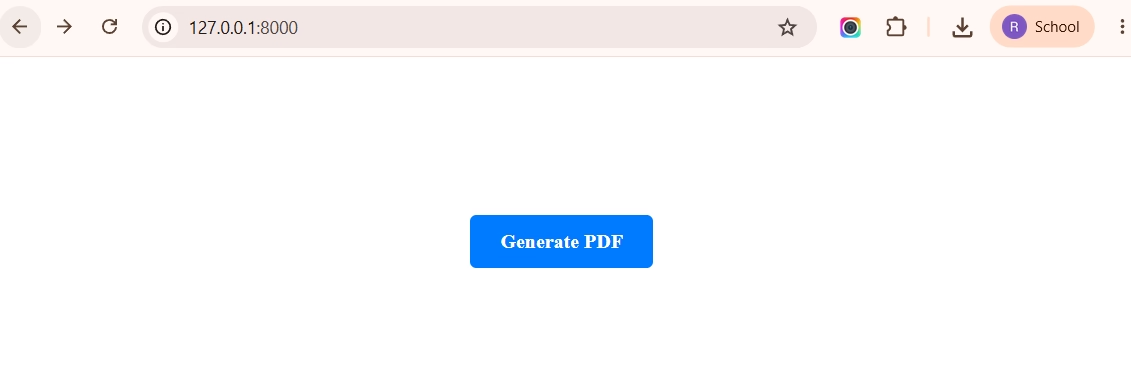
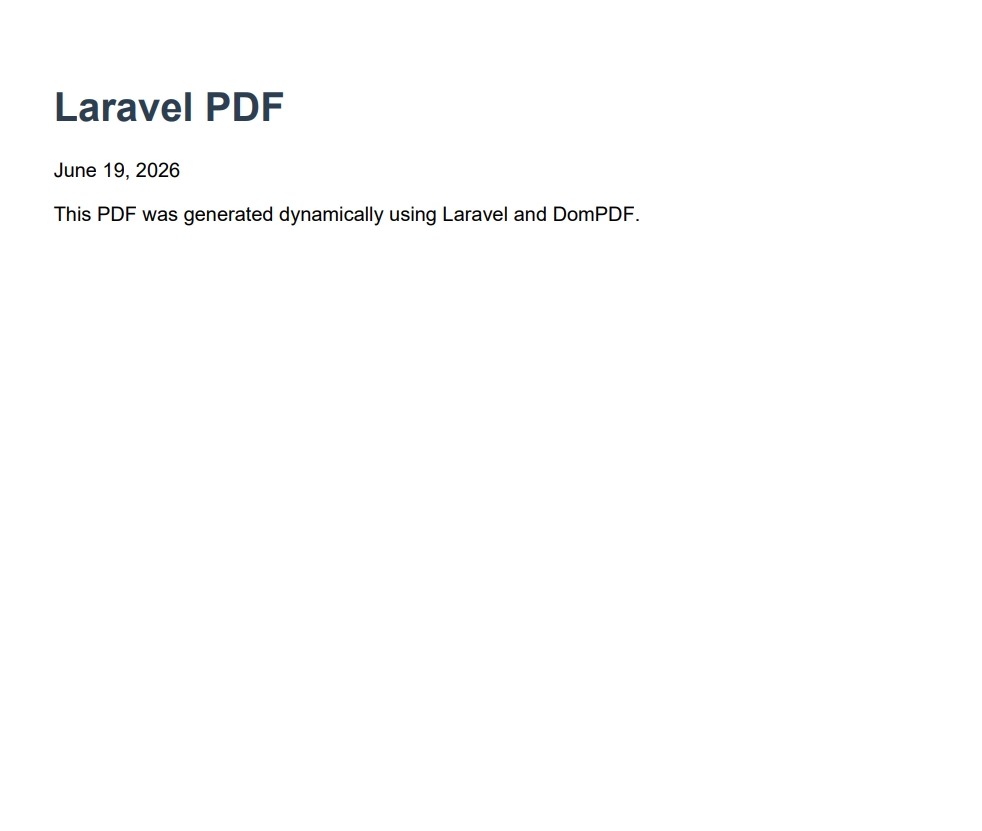
You can also visit http://127.0.0.1:8000/generate-pdf in your browser — it will automatically trigger a download of sample.pdf
http://127.0.0.1:8000/generate-pdf
Final PDF saved to: C:\Users\username\Downloads\sample.pdf